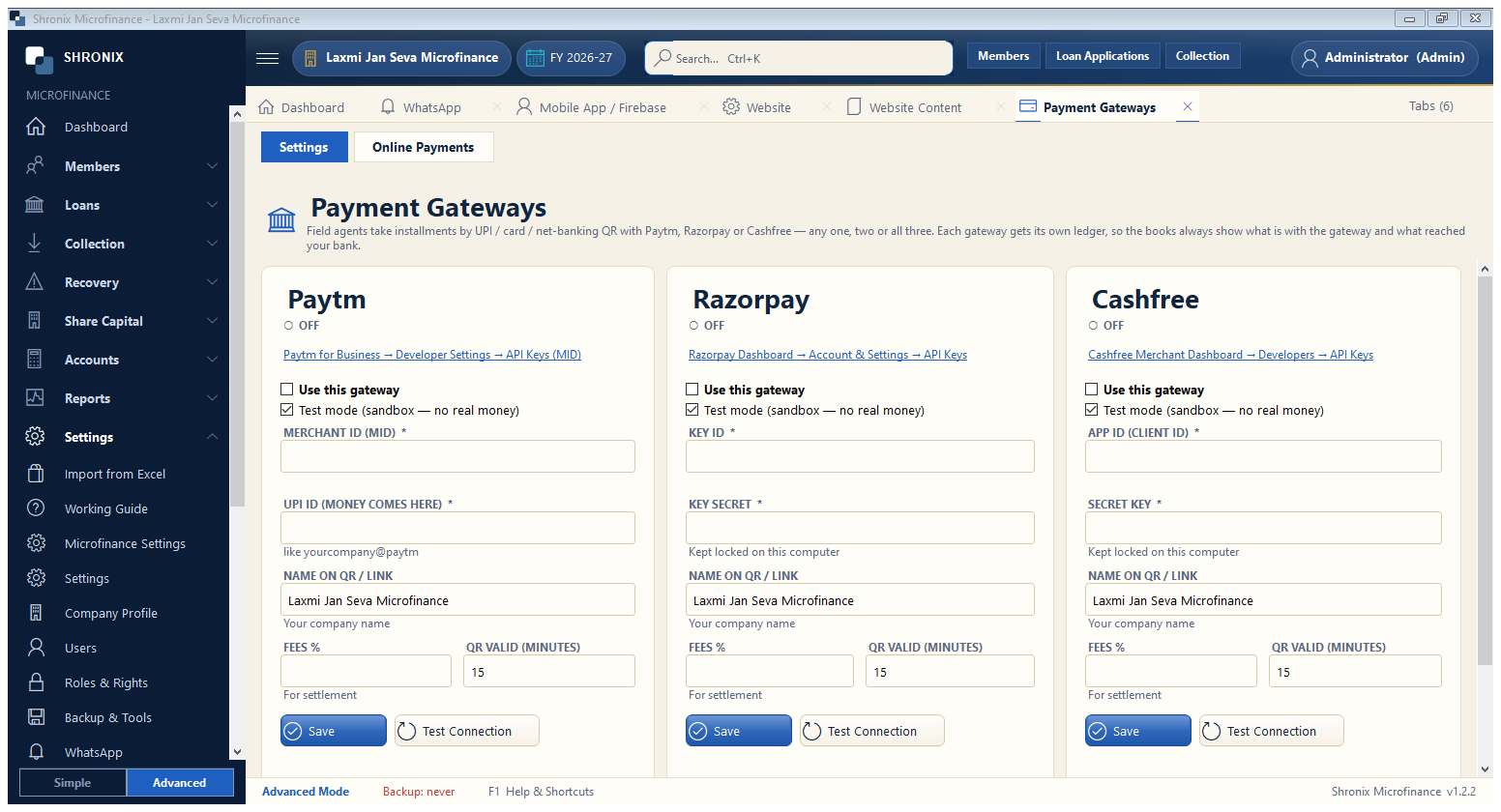
Settings → Payment Gateways. Connect Paytm, Razorpay or Cashfree (one, two or all three). Field agents can then show a payment QR for an installment, and members can pay EMI online from your website; the receipt is made by itself. Each gateway gets its own ledger, e.g. “Paytm Gateway”.
- Open a business account with the gateway (Paytm for Business, Razorpay or Cashfree) and finish its KYC.
- In the gateway's dashboard open the API keys page — the blue link on the card shows exactly where.
- First keep “Test mode” ticked and use the TEST keys. Make one test payment and check that it shows in Online Payments.
- When the test works, untick Test mode, put the LIVE keys and press Save again.
👆 Click a number to see the field
1
Where to get the keys
What to enter: This link shows the menu path in the gateway's own website.
Why: Keys are made in your gateway account, not in Shronix.
Example:
Paytm for Business → Developer Settings → API Keys2
Use this gateway
What to enter: Tick to switch this gateway ON.
Why: You can switch on one, two or all three gateways.
3
Test mode
What to enter: Keep ticked while testing — no real money moves. Untick when you go live.
Why: Test first so a mistake in the keys does not stop real payments.
4
Merchant ID / Key ID / App ID *
What to enter: The first key from the gateway (the name differs for each gateway).
Why: It tells the gateway whose account the money goes to.
Example:
MID: SHARMA123456785
UPI ID / Secret key *
What to enter: Paytm: your UPI ID where the money comes. Razorpay / Cashfree: the secret key.
Why: Without it the gateway cannot make the QR or confirm the payment.
Example:
sharmakirana@paytm6
Name on QR / link
What to enter: Your shop name as customers should see it.
Why: The customer sees this name before paying — it builds trust.
Example:
Sharma Kirana Store7
Fees % and QR valid
What to enter: Gateway charges (e.g. 2) and how many minutes a QR stays valid.
Why: Fees are booked as an expense when money is settled to your bank.
Example:
2 / 158
Save and Test Connection
What to enter: Press Save, then Test Connection.
Why: A green message means the keys are right; red means check the keys and mode.
💡 Tip: The keys are kept locked on this computer only. Never share the secret key on WhatsApp or email.