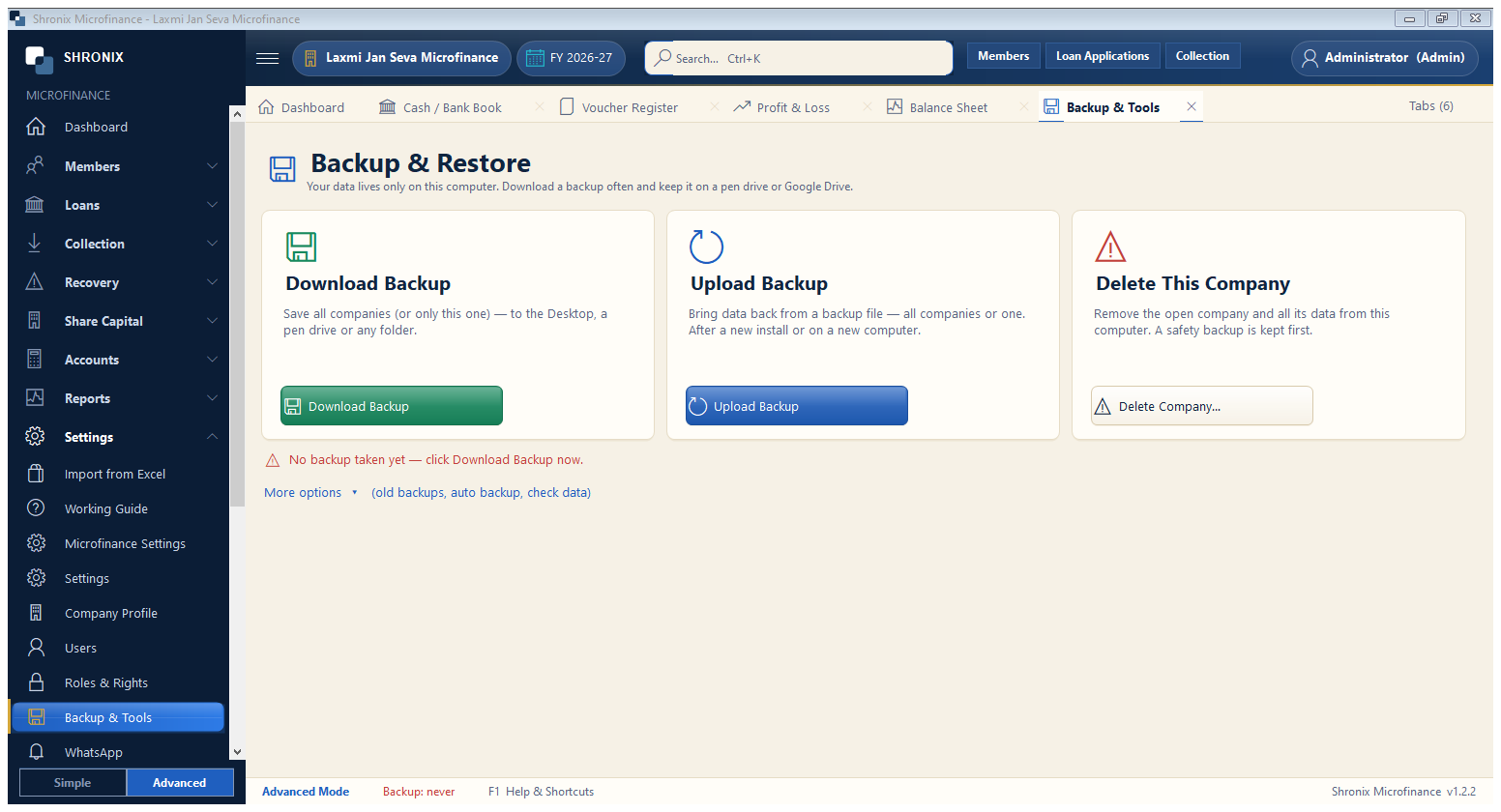
Settings → Backup & Tools. Your data lives only on this computer. Take a backup regularly to a pen drive or Google Drive.
👆 Click a number to see the field
1
Download Backup
What to enter: Click to save a backup file (.sbk) of all companies or only this one.
Why: If the computer breaks or Windows is reinstalled, this file brings everything back.
Example:
Shronix_All_Companies_2026.sbk2
Upload Backup
What to enter: Click to bring data back from a backup file.
Why: Use it on a new computer, or to undo a big mistake.
3
Delete Company
What to enter: Removes the open company completely.
Why: A safety backup is taken first, but use it with care.
4
Backup reminder
What to enter: This line shows when the last backup was taken.
Why: Automatic backup also runs when you close the software.