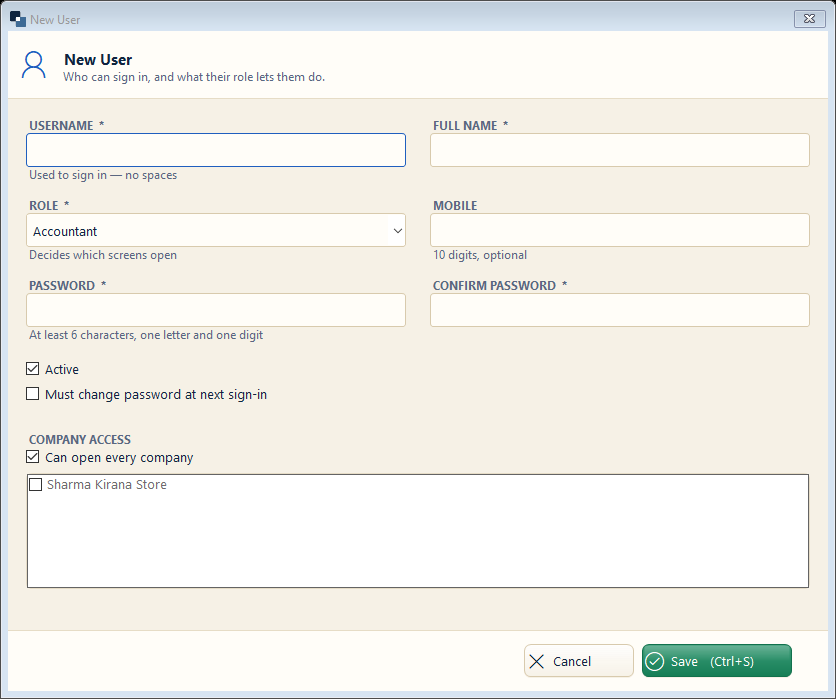
Settings → Users → New User. Give each staff member their own login; their role decides which screens they can open.
👆 Click a number to see the field
1
Username *
What to enter: The name used to sign in (no spaces).
Why: Every bill and entry records who made it.
Example:
ravi2
Full name *
What to enter: Staff member's name.
Why: Shown on screens and reports.
Example:
Ravi Kumar3
Role *
What to enter: Choose Billing Operator, Accountant, Viewer… or your own role.
Why: The role decides what this person can see and do.
Example:
Billing Operator4
Mobile
What to enter: Optional 10-digit mobile.
Why: Used for the staff mobile app and password help.
Example:
98290 123455
Password and confirm
What to enter: Type the password twice (at least 8 characters).
Why: Keep it secret; you can reset it later from Users.
6
Must change password at next sign-in
What to enter: Tick to make the person choose their own password.
Why: Then even you do not know their password.
7
Company access
What to enter: Leave “Can open every company” ticked, or choose only some companies.
Why: A staff member of one shop cannot open another shop's books.
8
Save
What to enter: Click Save (Ctrl+S).
Why: The user can sign in at once.