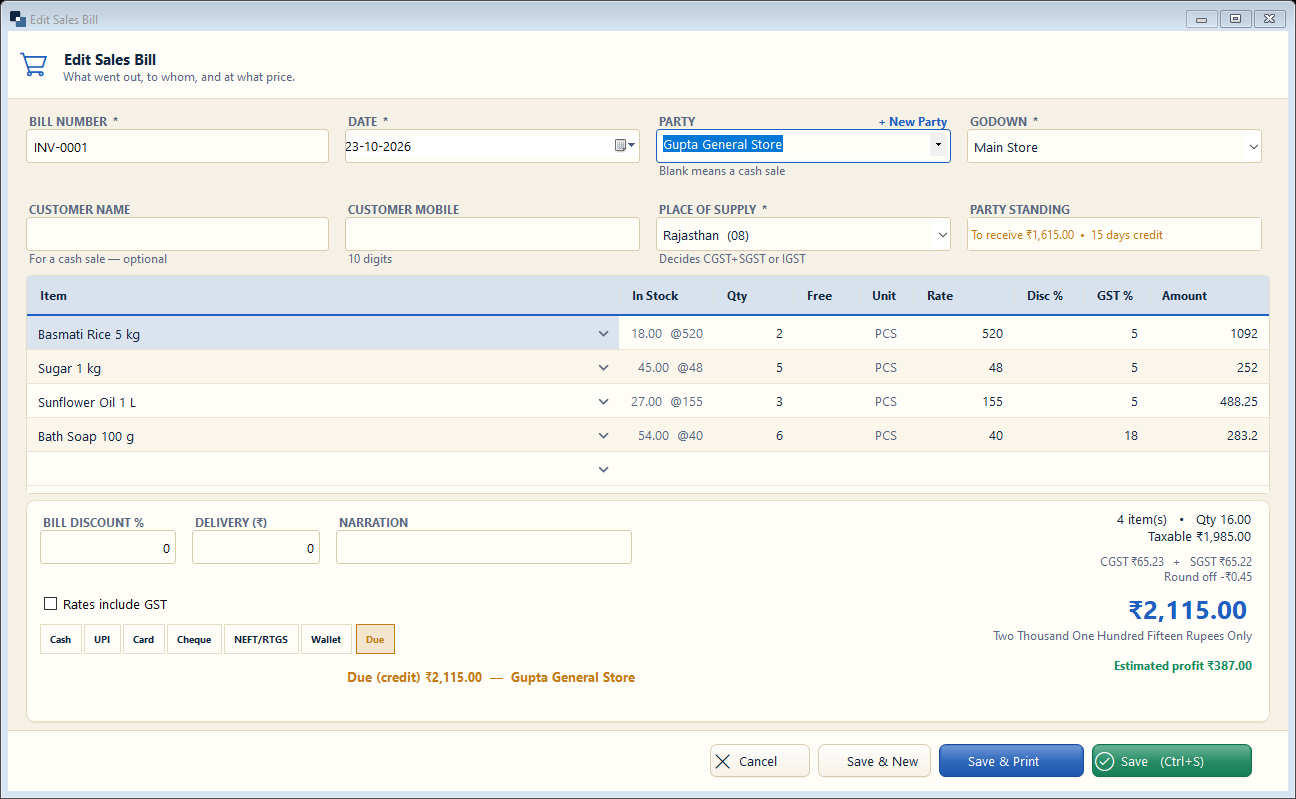
Sales → Sales Bill (or press the shortcut shown in the menu). Choose the party, add items, take payment and save — the bill number, GST and total are calculated by themselves.
👆 Click a number to see the field
1
Bill number and date
What to enter: Filled automatically — change the date only for an old bill.
Why: Numbers never repeat.
Example:
INV-00012
Party
What to enter: Type a few letters and choose the customer. Leave blank for a cash sale.
Why: Credit, GST type and previous balance come from the party.
Example:
Gupta General Store3
Cash customer name / mobile
What to enter: For a cash sale you can still write the name and mobile.
Why: Printed on the bill; bill can be sent on WhatsApp.
4
Place of supply
What to enter: Filled from the party's state.
Why: Decides CGST + SGST or IGST.
Example:
Rajasthan (08)5
Party standing
What to enter: Shows what this party already owes.
Why: Check before giving more credit.
Example:
To receive ₹1,6156
Items
What to enter: Type the item name / code or scan the barcode; enter Qty. Rate, GST and amount fill themselves.
Why: Stock in hand is shown next to each item.
Example:
Sugar 1 kg × 57
Bill discount, delivery, narration
What to enter: Optional discount %, delivery charge and a note.
Why: Discount is spread over the items before GST.
Example:
2%8
Payment
What to enter: Click Cash / UPI / Card… and the amount; Due = credit.
Why: Money goes into the right account; due goes to the party.
Example:
Cash ₹2,1159
Total
What to enter: Check items, taxable value, GST and the grand total.
Why: Amount in words and estimated profit are shown too.
Example:
₹2,115.0010
Save / Save & Print
What to enter: Save (Ctrl+S), or Save & Print to print at once.
Why: Save & New opens a fresh bill for the next customer.