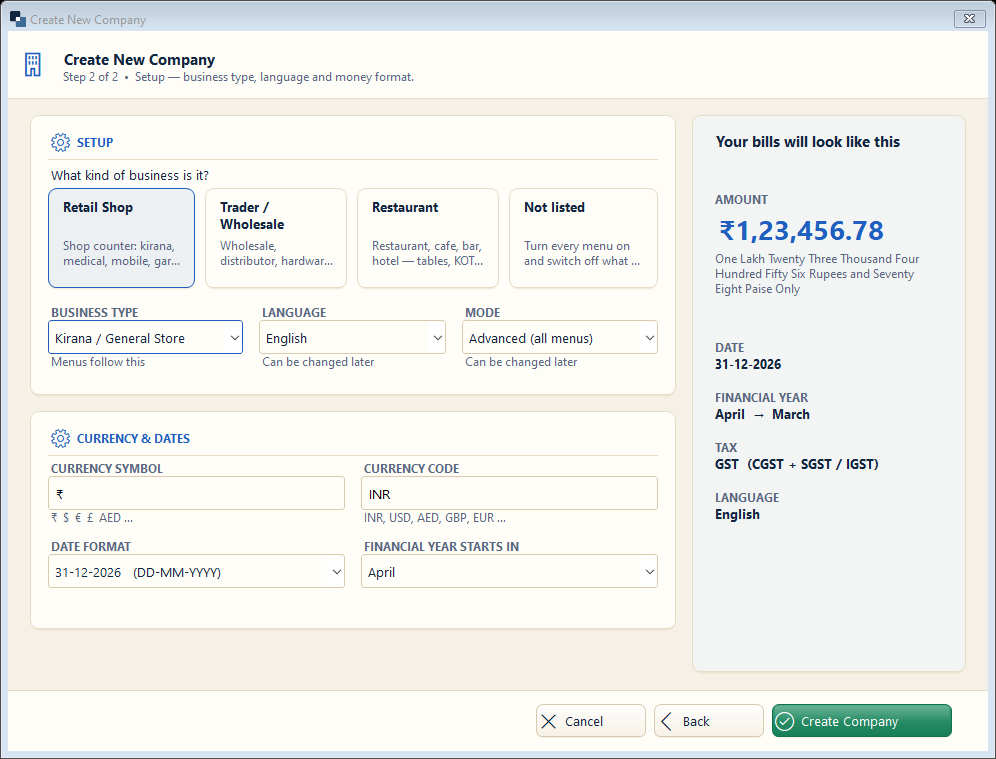
Tell the software what kind of business it is. It switches on only the menus you need — you can change all of this later.
👆 Click a number to see the field
1
Kind of business
What to enter: Click the card closest to your business.
Why: Retail Shop = counter billing; Trader / Wholesale = orders, challans, salesmen; Restaurant = tables and KOT; Not listed = all menus.
Example:
Retail Shop2
Business type
What to enter: Choose the exact trade.
Why: Adds trade features — e.g. Medical: batch & expiry, Mobile shop: IMEI.
Example:
Kirana / General Store3
Language
What to enter: Language of the screens for this company.
Why: Each company can have its own language.
Example:
English / हिंदी4
Mode
What to enter: Simple = few menus, Advanced = all menus.
Why: Start with Simple if you are new to computers.
Example:
Advanced5
Currency
What to enter: Filled from the country (₹ / INR).
Why: Change only if you bill in another currency.
Example:
₹ / INR6
Date format and financial year
What to enter: Keep DD-MM-YYYY and April for India.
Why: Reports, GST and year-end use the financial year.
Example:
April7
Create Company
What to enter: Click Create Company.
Why: The company is created and opens. You can start billing at once.