Open Settings → Company Profile once and complete the details that appear on bills (logo, bank details and terms are further down on the same page).
👆 Click a number to see the field
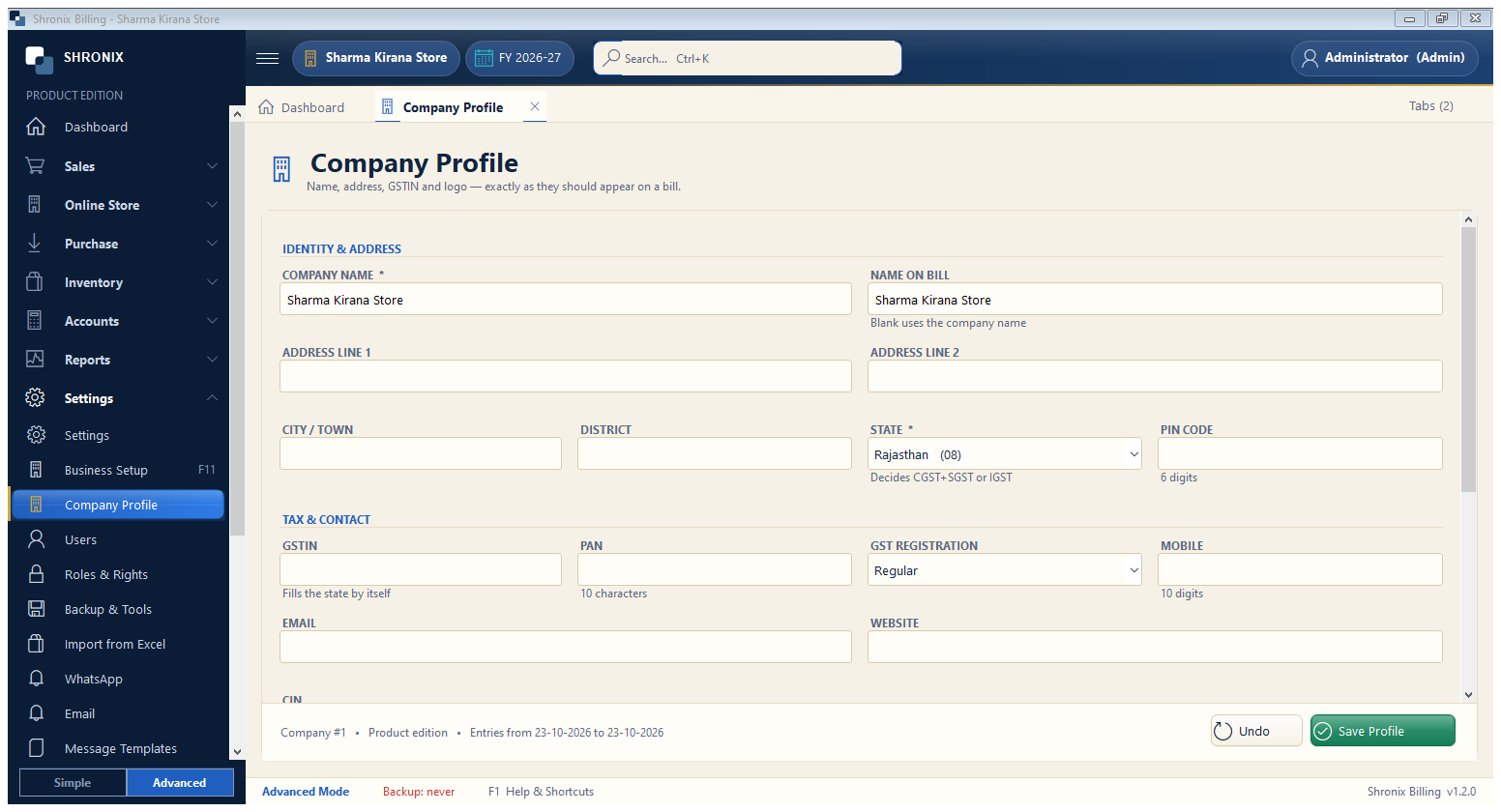
1
Settings → Company Profile
What to enter: Click Company Profile in the left menu (under Settings).
Why: All company details are kept here.
2
Name on bill
What to enter: Leave blank to print the company name, or write a shorter / trade name.
Why: This exact text is printed on bills.
Example:
Sharma Kirana Store3
Address lines, city, district, PIN
What to enter: Complete postal address.
Why: Printed on bills and used in e-way bills.
Example:
Main Bazar, Chomu, Jaipur — 3037024
State
What to enter: Already filled from step 1 — check it.
Why: Wrong state = wrong GST type on every bill.
Example:
Rajasthan (08)5
GSTIN
What to enter: Type your GST number — the state fills itself from it.
Why: Needed for tax invoices and GST returns.
Example:
08ABCDE1234F1Z56
GST registration
What to enter: Regular, Composition or Unregistered.
Why: Composition dealers get a “Bill of Supply” without tax.
Example:
Regular7
Mobile, email, website
What to enter: Contact details for your customers.
Why: Printed on bills and used for WhatsApp / email.
Example:
98765 432108
Save Profile
What to enter: Click Save Profile.
Why: Changes are used from the next bill.