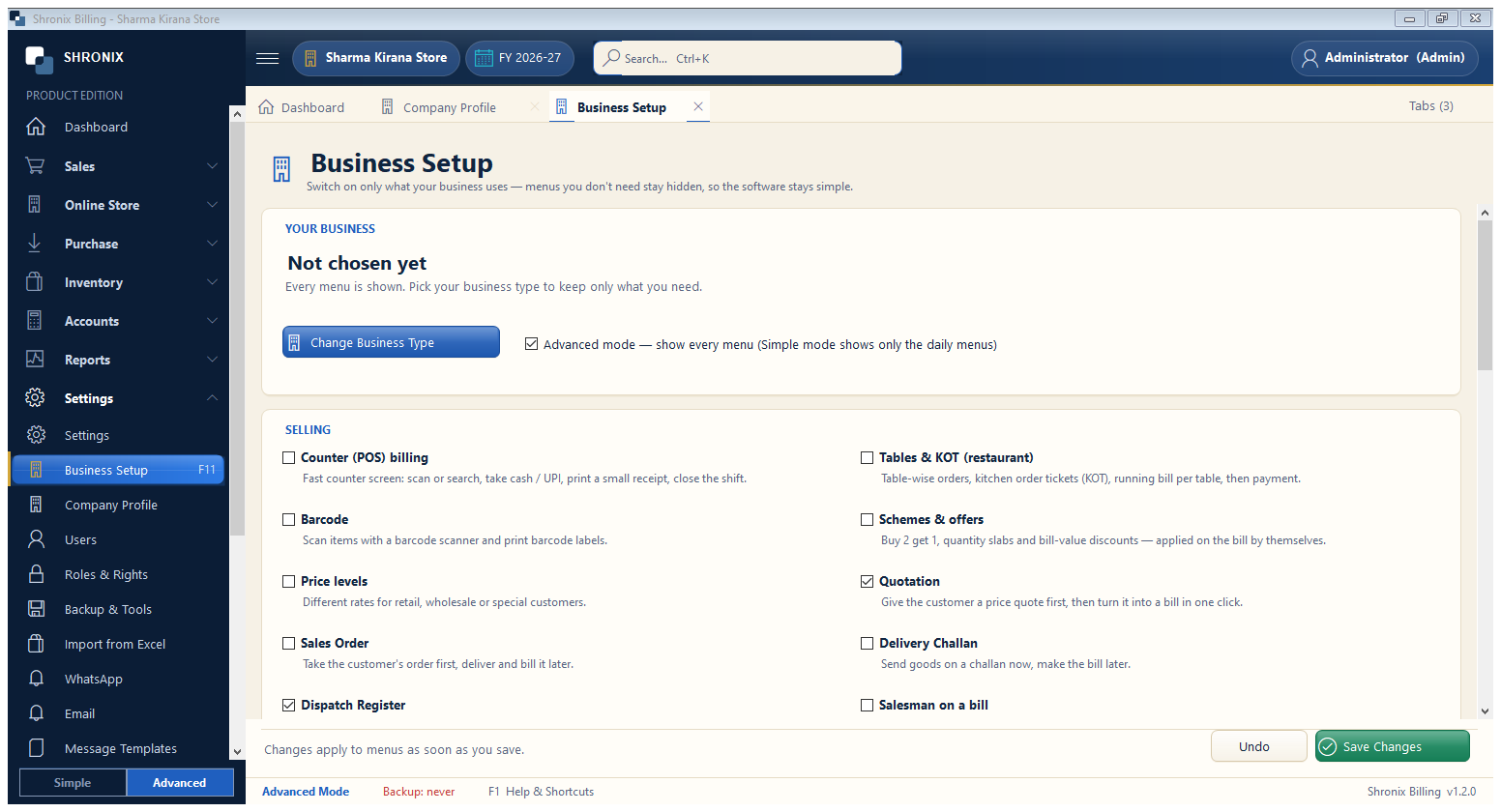
Settings → Business Setup (F11). Tick only the features your business uses; menus you do not need stay hidden, so the software stays simple.
👆 Click a number to see the field
1
Change Business Type
What to enter: Pick your business type again if you chose wrongly while creating the company.
Why: The right type switches on the right menus in one click.
Example:
Kirana / General Store2
Advanced mode
What to enter: Tick to show every menu; untick for Simple mode (only daily menus).
Why: Simple mode is easier for new staff.
3
Counter (POS) billing
What to enter: Tick if customers pay at a shop counter.
Why: Gives a fast full-screen counter with barcode, cash / UPI and a small receipt.
4
Barcode
What to enter: Tick if you use a barcode scanner or print barcode labels.
Why: Items can then be added to a bill by scanning.
5
Quotation, Sales Order, Delivery Challan
What to enter: Tick the documents you give before a bill.
Why: Each one can later be turned into a bill in one click.
6
Save Changes
What to enter: Click Save Changes.
Why: Menus change at once. Scroll down for Stock, Purchase, Accounts and GST options.